
Installation Guide
The information in this document applies to version 7.0.13 of Syhunt Hybrid.
Table of Contents
Introduction
Syhunt Hybrid 7.0 is a 64-bit multi-platform application security scanner that runs on Windows and Linux, such as CentOS and Ubuntu Desktop/Server with near zero effort and out-of-the-box on Kali Linux and Parrot Security operating systems. Syhunt Hybrid allows to perform web and mobile application security testing (DAST and SAST) and integrate with a variety of systems for continuous integration and scanning. Syhunt licenses allow you to have access to at least two versions of the product: Windows or Linux.
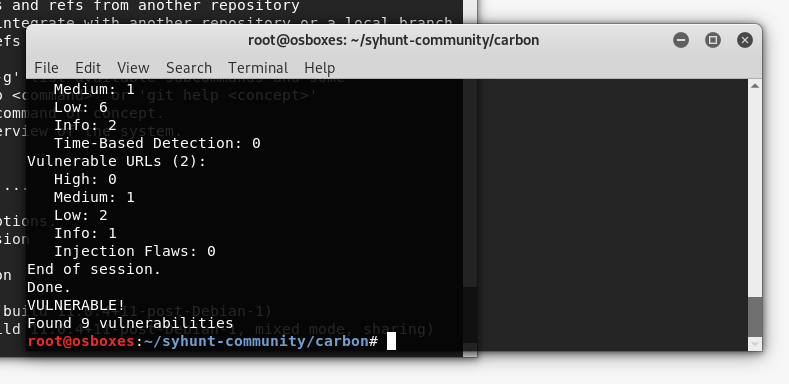
Comparison Between Syhunt Versions
| Hybrid for Windows | Hybrid for Linux | |
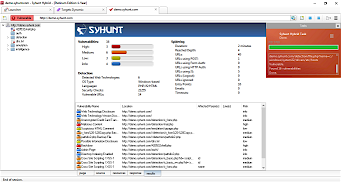
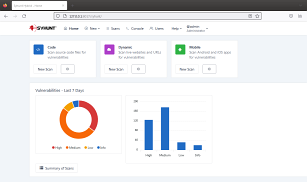
| Interface | GUI, Web UI, CLI and REST | Web UI, CLI and REST |
 |  | |
| Augmented Dynamic Analysis (DAST + OAST) | ||
| Web Application Source Code Analysis (SAST) | ||
| Mobile Application Source Code Analysis (MAST) | ||
| Dark Web Exposure Testing (DWET) | ||
| Forensic Analysis (FAST) | ||
| Deep AJAX Crawler | ||
| AI-Powered Capabilities | Patched Code Examples AI-Powered Login | Patched Code Examples AI-Powered Login |
| Integrations | Shell (PowerShell) Issue Trackers (GitHub, GitLab, JIRA...) CI/CD Tools (GitLab, GitHub & Jenkins) Supported WAFs for Virtual Patching Scan Azure DevOps / TFS project URLs | Shell (Bash) Issue Trackers (GitHub, GitLab, JIRA...) CI/CD Tools (Jenkins) Supported WAFs for Virtual Patching Scan Azure DevOps / TFS project URLs |
| Scan Scheduler | Coming soon | |
| OSes/Distributions Compatibility | Officially: Windows 11 Windows 10 Windows Server 2012 to 2019 Unofficially (Successfully Tested): Windows 7 | Officially: Ubuntu Server/Desktop 18 and later CentOS 7 and later (Minimal or Everything) Unofficially (Successfully Tested): See the Linux distro list macOS Monterey |
| Availability | Available Now (Native Win64 Binaries) | Check Availability of Native Binaries for your distro Available Now (Wine-Powered Installation) |
Installing Syhunt on Windows
Syhunt Hybrid for Windows (Full Version)
If you are a registered customer: Please follow the initial steps in our welcome guide to download, install and start using the full version of Syhunt Hybrid.
If you are a community (non-registered) user, you can use Syhunt Community:
Syhunt Community for Windows (Free Version)
- (Optional) Download and install GIT for Windows (if you have not done so yet) if you plan to scan GIT repositories with Syhunt
- Download Syhunt Community (syhunt-community-7.0.10.3.exe)
- After downloading the exe file, double-click its icon to launch it.
- You should read carefully the EULA presented to you on installation before accepting it.
- It's an easy next-next-finish installation process. When you click Finish, Syhunt will be launched and is ready for use - you should immediately see the Launcher screen.
Syhunt Community ˣ⁶⁴ CLI for Windows (Free Version)
- Download Java and install it (if you haven't done so already)
- (Optional) Download and install GIT for Windows (if you have not done so yet) if you plan to scan GIT repositories with Syhunt
- Download Syhunt Community Core (syhunt-community-7.0.10.3.jar)
- After downloading the jar file, double-click its icon to launch it.
- You should read carefully the EULA presented to you on installation before accepting it.
- It's an easy next-next-finish installation process. When you click Finish, Syhunt CLI tools are ready for use.
What's next? Read our quick start and integration guides.
Installing Syhunt on macOS
Syhunt Hybrid ˣ⁶⁴ for macOS (Full Version)
If you are a registered customer: Please follow the initial steps in our welcome guide to download, install and start using full version Syhunt Hybrid.
If you are a community (non-registered) user, you can use Syhunt Community:
Syhunt Community ˣ⁶⁴ for macOS (Free Version)
The information in this section applies to: macOS Big Sur, macOS Monterey.
Syhunt Community for macOS is now available for download. This is the Carbon version (Wine-Powered installation of Syhunt), compatible with 64-bit macOS.
- You must read and agree with the Syhunt EULA before continuing and executing any command-line in your operating system.
- Download Java for macOS (jre-[version]-macosx-x64.dmg) and install it (if you haven't done so already)
- If you have not done so yet, follow our quick guide to install Wine64 on macOS
- Install wget using the command:
brew install wget - Download Syhunt Community Core (syhunt-community-7.0.10.3.jar)
- After downloading the jar file, ctrl-click its icon and select Open to launch it.
- You should read carefully the EULA presented to you on installation before accepting it.
- It's an easy next-next-finish installation process. When you click Finish, Syhunt CLI tools are ready for use.
Note: if you upgrade your macOS from Big Sur to Monterey, and see the error "invalid active developer path” when attempting to scan a GIT repository, run the command xcode-select --install to fix this error related to the git command.
Installing Syhunt on Linux
Syhunt Hybrid ˣ⁶⁴ for Linux (Full Version)
If you are a registered customer: Please follow the initial steps in our welcome guide to download, install and start using full version Syhunt Hybrid.
If you are a community (non-registered) user, you can use Syhunt Community:
Syhunt Community ˣ⁶⁴ for Linux (Free Version)
Syhunt Community for Linux is now available for download. This is the Carbon version (Wine-Powered installation of Syhunt), compatible with most 64-bit Linux desktop and servers. Native ELF binaries for Syhunt Community for Linux are in the final stages of development and expected to become available gradually from October 2022 onwards - those will run without the need of having Wine installed and are expected to be available for Ubuntu and CentOS distributions.
Follow the Syhunt installation guide for the Linux distribution you use.












| Distribution | Guide Difficulty Level |
| Kali Linux | Zero, Out-of-the-box |
| Parrot OS | Zero, Out-of-the-box |
| Fedora | Very Easy |
| MX Linux | Very Easy |
| Ubuntu Desktop/Server | Easy |
| CentOS (Everything/Minimal) | Easy |
| Debian | Easy |
| openSUSE | Easy |
| KDE Neon | Easy |
| Deepin | Easy |
| Manjaro | Easy |
| Red Hat Enterprise (RHEL) | Easy |
| Arch Linux | Medium |
| Linux Mint | 20: Easy, 19 or later: Medium |
| Elementary OS | 5.1: Easy, 5.0: Unsupported |
| Solus | Unsupported (Unstable) |
System Requirements
Syhunt Hybrid (including its Community Edition) can be installed on 64-bit versions of Windows or Linux, but it is able to analyze applications designed for any target platform, including Android, Apple iOS and macOS, BSD, Linux, Windows, Solaris and Unix, independently of the platform it is executed from.
- 4GB of available RAM (8GB recommended)
- 2GB of free disk space*
- Internet Connection (recommended for code scans and dynamic scans and some features)
- One of the following compatible 64-bit operating systems:
- Windows 10 or 11, or Windows Server 2012 to 2022 (x64 or ARM64). On Windows Server, it is important to ensure that you have the WebView2 Runtime installed. If the WebView2 Runtime is not installed, Syhunt will issue a warning when launching its user interface. You can find it in the Evergreen Standalone Installer.
- Make sure you have Edge preloaded on system startup. On Windows 10, Edge preload is already a default system setting. On Windows Server, you have to enabled the Edge preload manually. On Windows 11, our tests showed that disabling the Edge preload would not make any difference.
- Ubuntu Server or Desktop 18 or higher
- CentOS 7 or 8 (Minimal or Everything)
- Any unofficially supported OS**, like a Linux distribution such as the ones listed below, or macOS Big Sur or higher (Intel).
- Windows 10 or 11, or Windows Server 2012 to 2022 (x64 or ARM64). On Windows Server, it is important to ensure that you have the WebView2 Runtime installed. If the WebView2 Runtime is not installed, Syhunt will issue a warning when launching its user interface. You can find it in the Evergreen Standalone Installer.
- (Optional) GIT on Linux/macOS or GIT for Windows (optional for GIT repository scans)
- Java or Java Headless installed on Linux/macOS
- If native binary is not available for your specific OS type or distribution yet, Wine64 Stable (3, 4 or 5) is required to be installed.
- (Optional) Java 8 or higher (optional for Android APK file scan)
- (Optional) Python 3.7.0 or higher, Selenium module and Chrome browser version 109 or higher (optional for extended scripting capabilities)
- (Optional) OpenAI API key to enable AI-powered features
* This does not include the space required to save scan session data, which varies depending on the website or source code being analyzed and the scan frequency.
** Unofficially supported OS: means that while the product has been successfully tested and the installation process has been documented, Syhunt does not provide technical support or assistance for issues related to the product's performance on that particular OS. If you choose to use the product with an OS that is not officially supported, you may encounter compatibility issues, errors, or bugs. Therefore, it is always recommended to use a supported OS to ensure optimal performance and compatibility with the product.
Compatible Linux Distributions
Officially Supported:
Ubuntu Server/Desktop 18.10 and later
CentOS 7.7 and later (Minimal or Everything)
Unofficially (Successfully Tested):
Kali Linux 2019 and later
Parrot OS 4.1, 4.7 and later
Debian 9.11 and later
Linux Mint 19.2 and later
OpenSUSE Leap 15.1 and later
Fedora 32
MX Linux 19.1 and later
KDE Neon 2020.03 and later
Deepin 15.9
Manjaro 19
Arch Linux 2019 and later
Unsupported:
Elementary OS 5.1 (Successfully Tested), 5.0 (Unsupported)
CentOS 6.1 (Successfully Tested)
Solus 4.1 (Unstable)
Internet Connection Requirements
The machine on which Syhunt is installed must be allowed to open HTTP(S) requests to the following Internet addresses:
| Domain | Ports | Feature |
| Specific target domain(s) | 80, 443* | The domain hosting the web application or codebase you want to scan |
| Any or specific asset domain(s) | 80, 443 | Optional, if you want externally hosted JavaScript files and assets to be analyzed during DAST or SAST (Recommended) |
| syhunt.fra1.cdn.digitaloceanspaces.com | 443 | Required (Assets for installation and auto-updating) |
| www.syhunt.net | 80, 443 | Required (Assets for HTML/PDF generation, update notification, auto-updating, and more) |
| signal.syhunt.net | 80, 443 | Required during DAST for performing OAST (Important) |
| api.openai.com | 443 | Required by AI-powered features |
| fonts.googleapis.com | 80, 443 | Required (Assets for HTML/PDF generation - Fonts) |
| www.google.com | 443 | Required (Assets for HTML/PDF generation - Google's JSAPI) |
| www.gstatic.com | 443 | Required (Assets for HTML/PDF generation - Google's JSAPI) |
* If your target is using a non-standard port (eg, 8080), or you want to connect to a GIT address using SSH, or other protocols, you need to allow these ports as well.
 If you use a personal firewall, you'll just have to let the firewall know that Syhunt is authorized to make connections to the Internet.
Finishing the Installation
- Download Syhunt Community or Syhunt Hybrid using a web browser like Chrome or Firefox, wget or curl command.
- Run the Syhunt setup application (On Windows and Linux distros the setup will run if you just open the file after giving it the appropriate permission):
- Hybrid: java -jar syhunt-hybrid-7.0.13.7.jar
- Community: java -jar syhunt-community-7.0.10.3.jar
- Alternatively, on Linux, if you have binfmt-support installed (sudo apt install binfmt-support, to install it), give the jar file executable permission (chmod a+rx setupfilename.jar or using the file properties of the jar file) and execute it directly:
- Hybrid: ./syhunt-hybrid-7.0.13.7.jar
- Community: ./syhunt-community-7.0.10.3.jar
- Read carefully the EULA presented to you on installation before accepting it.
It's an easy next-next-finish installation process. When you click Finish, Syhunt tools are ready for use.
Syhunt will (by default) be installed in /home/[user]/syhunt-hybrid or /home/[user]/syhunt-community
Console mode
Alternatively, if the Syhunt setup is running in console mode:
- Give 1 to accept after reading EULA (if you agree with its terms) or 2 to reject it (if you reject the terms, you cannot install and use Syhunt)
- Press enter to install using the default installation path
- Enter 1 to continue the installation
- Enter Y (Yes) to install Syhunt Core
- Enter 1 to continue. After that you should see a message saying: console installation done.
What's next? Read our quick start and integration guides.
Enabling PDF Reports on Headless Linux
If you are running Ubuntu Server, CentOS Minimal or other headless Linux distro, before trying to generate a PDF report, you will need to install and start xvfb.
Enabling Plus Extensions
After installing Syhunt Hybrid on Linux, if you wish to enable Plus extensions - APK support and GIT support within the web UI, you need to install the Syhunt Hybrid Plus extensions.
- Download and install with its default settings the Syhunt Hybrid Plus extensions: syhunt-hybrid-plus-1.1.jar.
To scan Android APK files for mobile application security vulnerabilities on a Windows machine, please download and install Java 8 or higher.
Enabling Extended Scripting Capabilities
- Download and install the Chrome browser version 109 or superior from https://www.google.com/chrome/
- Download and install Python 3.7.0 or superior from https://www.python.org/downloads/. Make sure not to install the Python app from the Microsoft Store or it will not work with Syhunt.
- Install Selenium using the command: pip install selenium
- Make you sure you add the path to the Python interpreter to the Windows Environment Variables under System Variables, not just the User Variables. If you need to find the Python path, type the command where python. Alternatively, you open the Python prompt and execute:
import sys; print(sys.path)to reveal its path.- If you don't now how to add the variable, see the following guide How to set the path and environment variables in Windows.
- Finally, if you have Syhunt version 7.0.13.4 or superior, confirm if everything is OK by running the command scancore -runcmd:checkdeps from within the directory where Syhunt is installed.
Updating Syhunt
You can download and install the updates directly from the Syhunt website. If you have Syhunt Hybrid version 6.8.4 or higher, Syhunt will also notify you about new releases both in its Launcher interface and reports.
On Linux or macOS, you can use the command scanupdate to check for updates. If updates are available, Syhunt will ask if you want to download and install them. If you call scanupdate auto, Syhunt will check for updates and automatically install them when the command is executed without asking for user confirmation.
There is no need to uninstall Syhunt before installing a new version, unless you are updating Syhunt Community CLI under Windows.
Uninstalling Syhunt
On Windows operating systems, Syhunt creates a uninstall shortcut in the Start Menu under the Syhunt Community or Syhunt Hybrid folder, and an uninstall entry in the Program and Features area of the Windows Control Panel which allow to uninstall Syhunt completely.
On Linux or macOS operating systems, go to the directory where you installed Syhunt and execute the command:
java -jar Uninstall.jar